
 Electronics & Computer
 Smart Home & Security
 Home Appliances
 Kitchen & Dining
 Power & Charging
 Gaming & Entertainment
 Automotive & Outdoor
 Health & Personal Care
 Office Electronics
 Smart Lighting & Ambient



🤝 AFFILIATE DISCLOSURE: AVERY FINDS MAY EARN A COMMISSION IF YOU PURCHASE THROUGH LINKS IN THIS ARTICLE.
A set of listing photos can show what a property looks like. A well-ordered video can also help viewers understand how the rooms connect and which details deserve a closer look. That matters when someone is deciding whether to book a viewing from a phone screen. The challenge for a real estate agent is making a video that answers those questions without adding hours of production work to every listing.
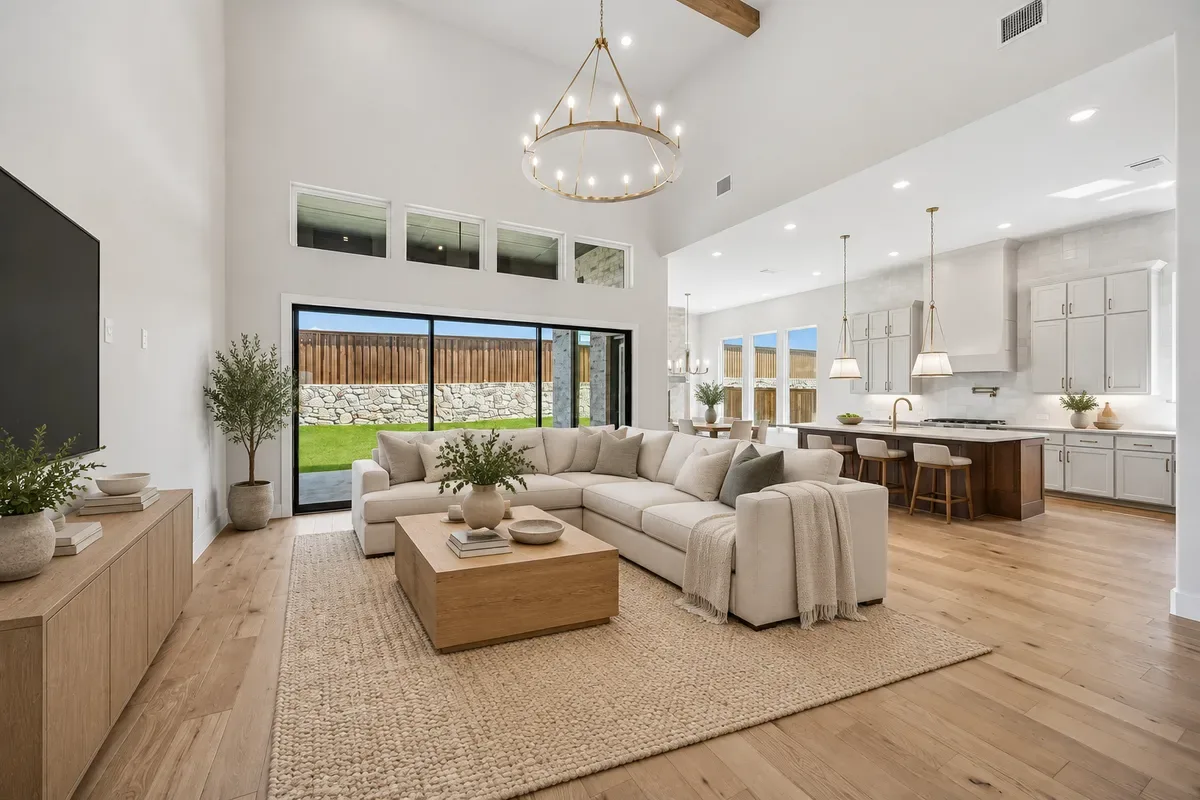
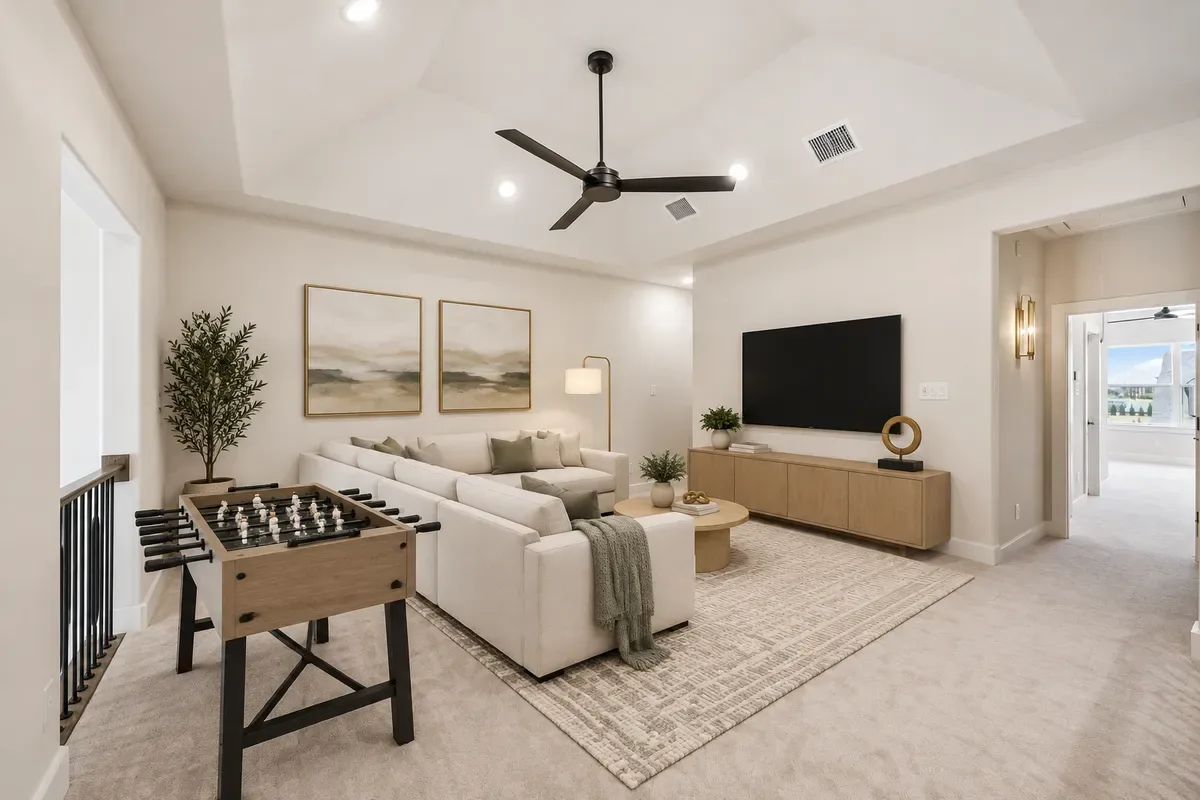
VideoTour.ai is an online platform for turning property photos into editable real estate video tours. This review looks at four parts of that workflow: building a photo sequence, adding motion, virtually furnishing rooms, and editing the video for publication. It draws on the company’s documentation and examples. The four images are two pairs of original and AI-staged stills from VideoTour.ai’s showcase. Every image and button opens the VideoTour.ai homepage.
What Is VideoTour.ai?
VideoTour.ai is designed for real estate agents and marketing teams that already have property photography. You can upload the photos you want to use or import listing material where supported. From there, you can organize the images into a tour, use scene effects selectively, and review the result in an editor. The editor also lets you add video footage you already have.
The workflow is easiest to evaluate with a property you know well. Pick a listing with clear photos of the exterior, the main living area, and the rooms that buyers tend to ask about. Turn those images into a short sequence and see whether it explains the home. If a shot or effect does little to clarify the layout or highlight a feature, you have a good reason to leave it out.
1. Build a Property Tour From Listing Photos
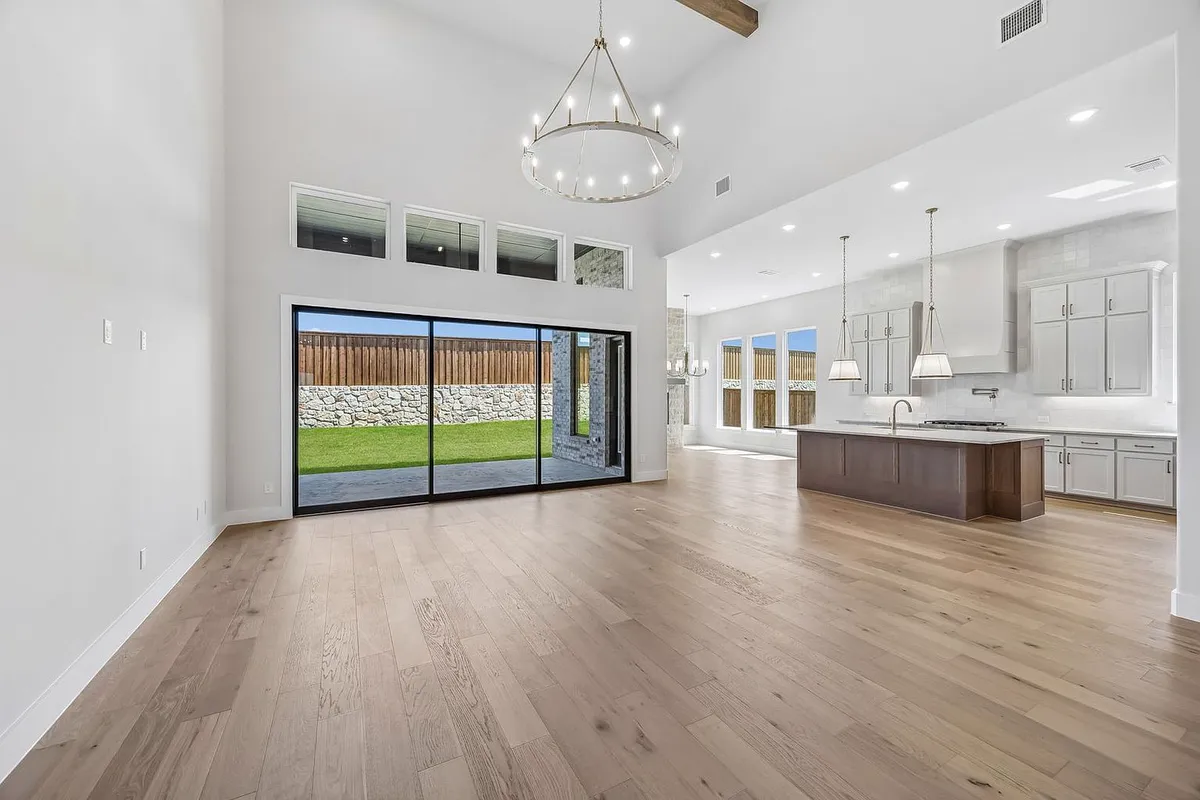
VideoTour.ai’s creation guide describes direct photo uploads, automatic arrangement, and manual ordering. Automatic arrangement gives you a starting sequence to review. Manual ordering gives you control when the layout is unusual, when two photos explain the same space, or when the strongest image for the opening comes from the middle of the listing.
For a conventional house, you might start with the exterior, move through the entrance and living area, and finish with the garden. An apartment with an open kitchen needs a slightly different sequence. A wide photo can establish the room, followed by a kitchen angle that shows where it sits in relation to the seating area. Keep those two shots together so the viewer can make the connection.
If you import listing information, compare it with your current listing before generating the video. Check the asking price, address, room counts, and floor area. Also check which photos came through, since a logo, a near-duplicate, or an outdated room image can end up in the sequence. Good source selection makes the finished tour easier to edit and easier to follow.
Visit VideoTour.ai to Explore Photo Tours
2. Add Motion to Still Property Photos
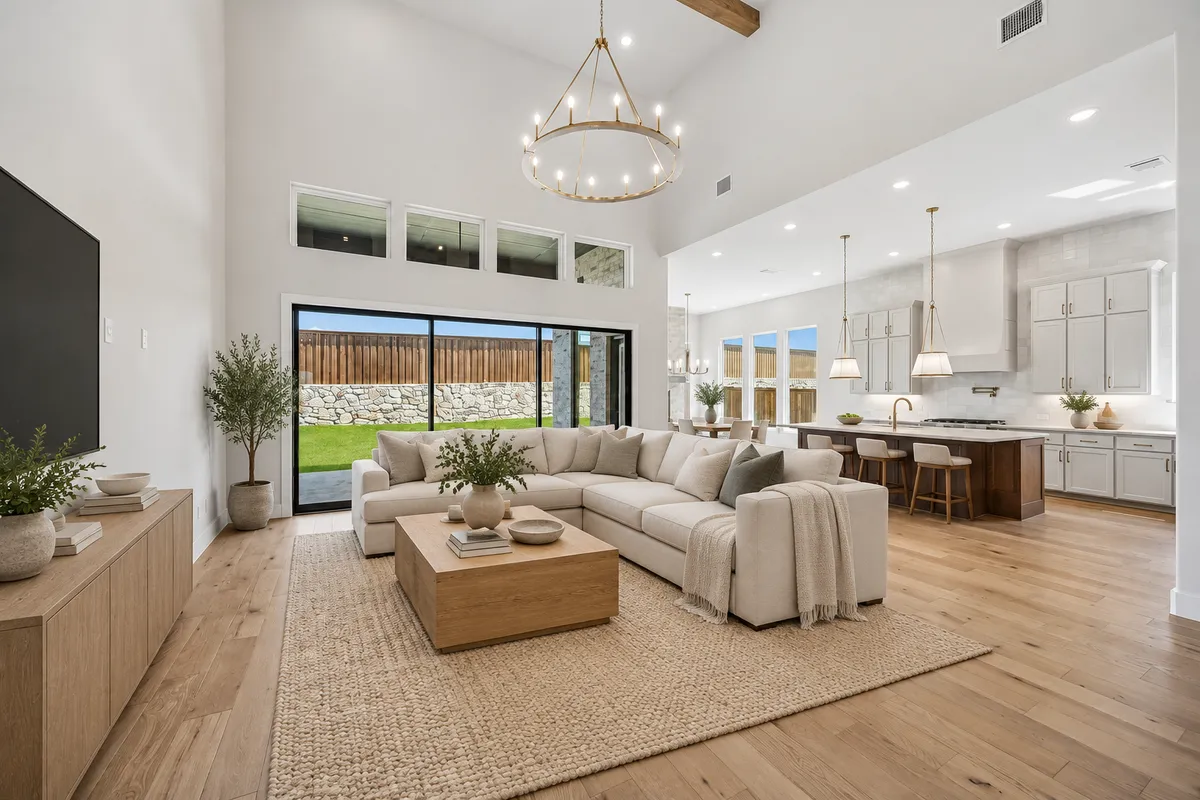
VideoTour.ai offers standard motion and AI Motion. Standard motion pans or zooms over a photo and, according to the company’s guide, uses no AI generation credits. AI Motion generates a camera-style clip from the image. A slow pan can be enough to lead the eye across the living room above. A generated move may suit an opening exterior or another shot where the movement has a clear purpose.
Start by deciding what someone should notice. For example, an interior shot might gently move toward a window to emphasize natural light. If that movement draws attention away from how the room fits together, a wider still or a slower pan may communicate the space better. Save more ambitious motion for a photo that has enough visible context to support it.
Compare every generated clip with the source photo. When a camera move extends beyond the original view, the software may infer details. Look at fixed features such as doors, windows, stairs, and the view outside. If something changes, try a smaller move or use standard motion. A believable video should give potential buyers the same basic understanding of the property they would get from the original photographs.
Visit VideoTour.ai to Explore Photo Motion
3. Show Furnishing Ideas With AI Virtual Staging
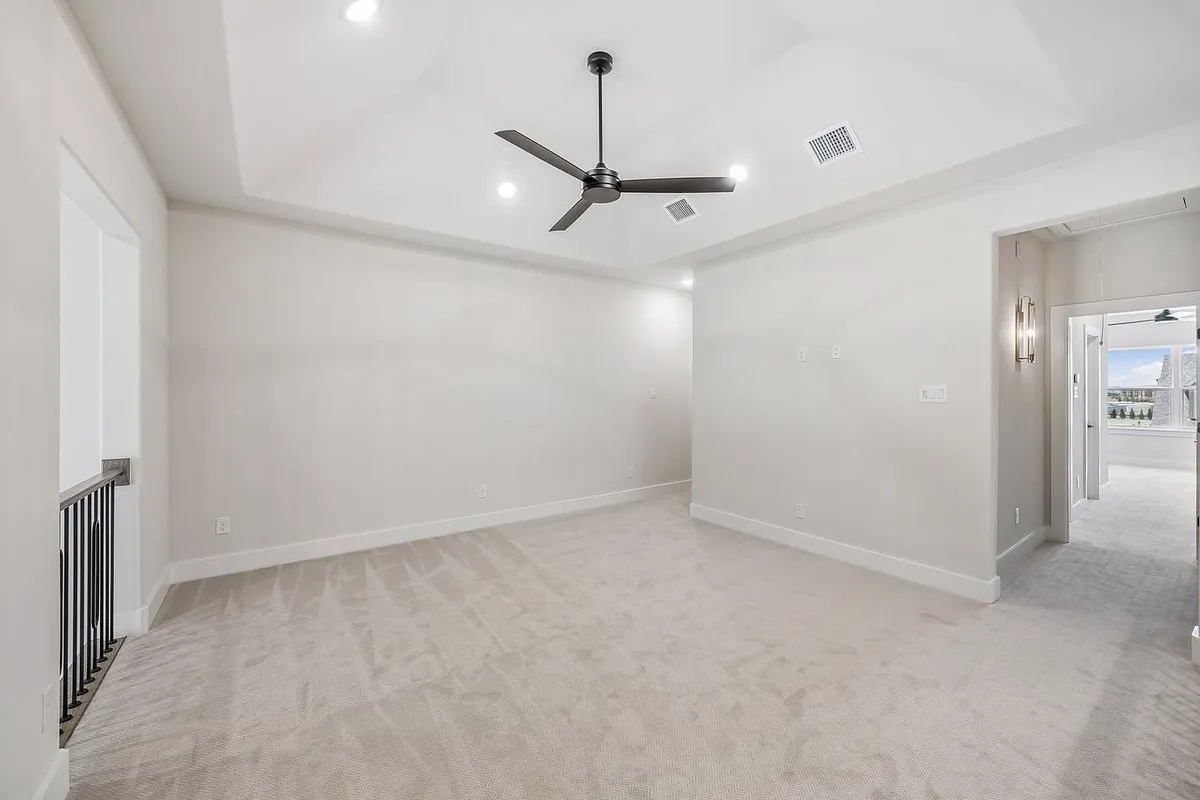
An empty loft can be hard to interpret from a listing photo. A suggested furniture arrangement gives viewers a way to picture it as a second lounge or recreation room. VideoTour.ai documents guided staging options based on room type and design style, as well as custom instructions and optional animated reveals. That lets you decide whether the tour needs a staged still or a sequence that shows the change.
For a loft like the one above, start with a specific request for a few pieces and identify features that should stay in place. A compact sofa and table could help explain how much room there is while keeping stairs and walkways visible. If the tour includes several angles, check whether the furniture and layout agree across the images.
Keep the original photo available and compare it with every staged result. Check room proportions and permanent features, especially windows, railings, and doors. Identify the staged version clearly when you publish it so buyers understand that the furnishings are a suggestion. The goal is to show one plausible use of the space while preserving the facts of the listing.
Visit VideoTour.ai to Explore Virtual Staging
4. Edit and Prepare the Tour for Publication
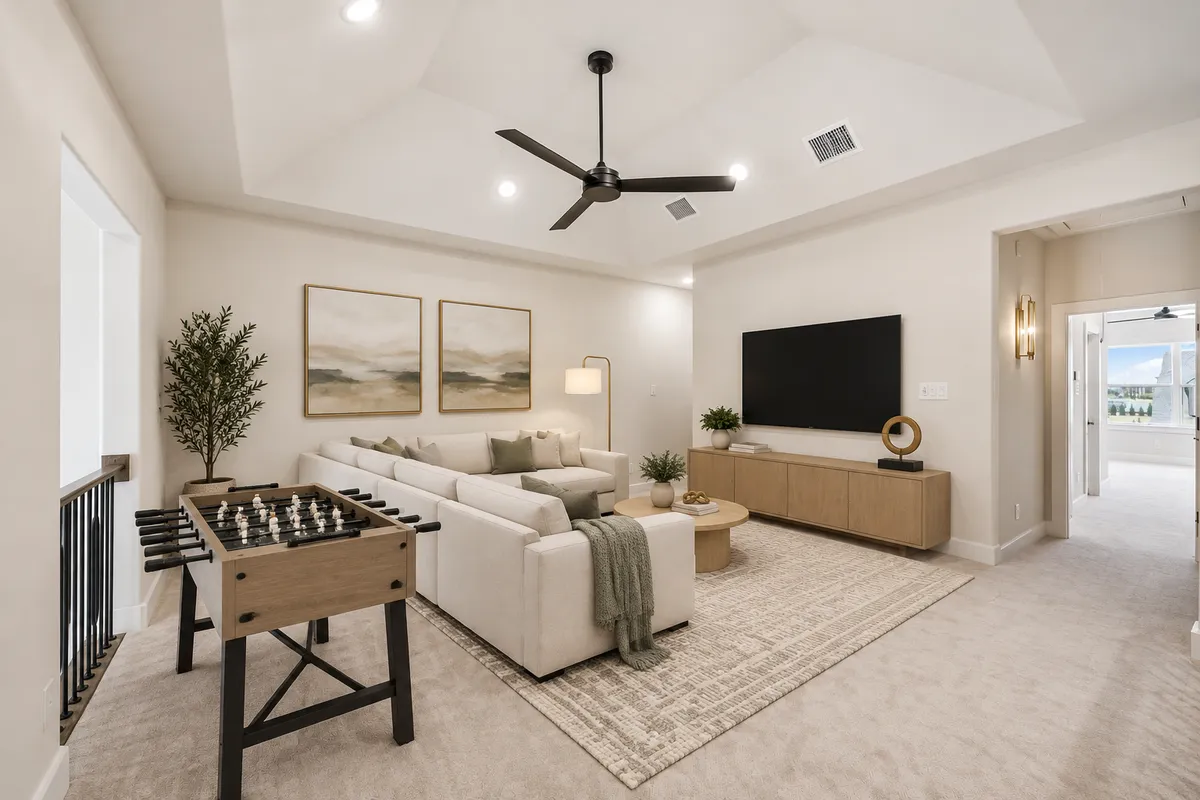
The editor lets you adjust the order and timing of scenes, add captions, and choose a wide, vertical, or square video format. Choose the format based on where the tour will appear. A wide shot may explain the full apartment layout on a listing page, while a vertical version might need a different shot to keep the doorway, seating area, or view in frame.
Watch the tour at the size your audience is likely to see it. On a phone, small property labels can be hard to read and a quick cut can make two adjacent rooms look disconnected. Give the most informative shots enough time to register. When you include a before-and-after pair like the loft above, keep the scenes close together and leave enough time for the staging label to be understood.
Apply your edits and watch the finished, downloadable video before posting. VideoTour.ai’s help center distinguishes changes saved in the editor from the updated video. Checking the export is especially worthwhile after you replace a scene, correct a property detail, or change the order of images that accompany narration.
Visit VideoTour.ai to Explore the Editor
What to Check Before Choosing a Plan
- Photo coverage. Check whether your photos include the angles needed to explain the property.
- Video format. Confirm the format and export settings you need for your listing page or social channel.
- Credit use. Check the displayed cost of the selected AI effects and factor in any revisions you expect.
- Review time. Allow time to check generated views, staging, captions, and the final export against the original listing.
Frequently Asked Questions
Can I make a real estate video with still photos?
Yes. You can upload property photos, arrange them into a sequence, and refine the video in the editor. You can also add existing footage if you have it.
Can I show both an empty room and a staged version?
Yes. You can keep the original photo as a reference or use an optional before-and-after reveal when generating the staged scene.
Does every scene need generated motion?
A still photo or a standard pan can work well when the room layout is already clear. Use AI Motion where the movement helps explain a feature or makes the opening easier to follow.
How much does a property tour cost?
Check the current plans and the credit total shown for the options you select. The number of AI effects and additional generations can affect the total.
Conclusion
VideoTour.ai is worth considering if you regularly work with listing photos and want to turn them into editable property videos. Start with one listing, build a sequence that explains the layout, and add motion or staging where it helps the viewer. Judge the finished export alongside the time and credits you spent reviewing it before deciding how it fits into your day-to-day listing workflow.




Reviews
There are no reviews yet.