
 Electronics & Computer
 Smart Home & Security
 Home Appliances
 Kitchen & Dining
 Power & Charging
 Gaming & Entertainment
 Automotive & Outdoor
 Health & Personal Care
 Office Electronics
 Smart Lighting & Ambient

🤝 AFFILIATE DISCLOSURE: AVERY FINDS MAY EARN A COMMISSION IF YOU PURCHASE THROUGH LINKS IN THIS ARTICLE.
There is a small but familiar gap between having an idea and getting it written down. You might think of a better opening for an email on the way to work or remember a detail from a meeting after closing your laptop. By the time you unlock your iPhone, find the right app, and start typing, you may have lost the wording you wanted. SpeakON approaches that problem with a physical voice button and an iPhone app that turns speech into text.
This SpeakON review looks at four uses for the same device: capturing a thought with the physical button, dictating into an iPhone text field, organising spoken notes, and preparing text in another language. It is based on SpeakON’s published product information and support guides. If you already use iPhone dictation, the most useful question is whether a dedicated button would help you capture things you currently leave unwritten.
What is SpeakON?
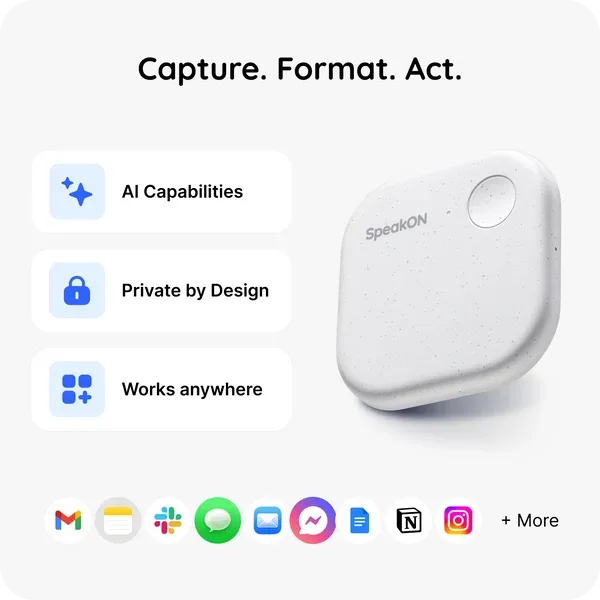
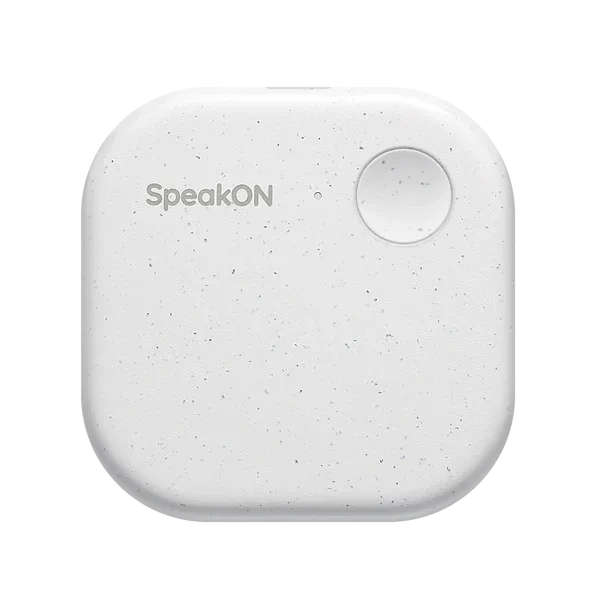
SpeakON combines a small recording device with an app and voice keyboard for iPhone. The hardware pairs through the SpeakON app over Bluetooth. It can attach magnetically to compatible MagSafe iPhones, and the brand includes a magnetic ring for cases or setups that need one. Check the case and phone you use every day before deciding where the button would sit.
The app can also use the iPhone’s built-in microphone on its own. That gives you two ways to see where SpeakON fits. You can start with the app to get a feel for its dictation and editing tools, or consider the hardware if reaching an on-screen microphone is the part that slows you down. The same person might use the physical button for a quick note and the keyboard later to draft a longer message.
1. Capture a thought with the SpeakON voice button
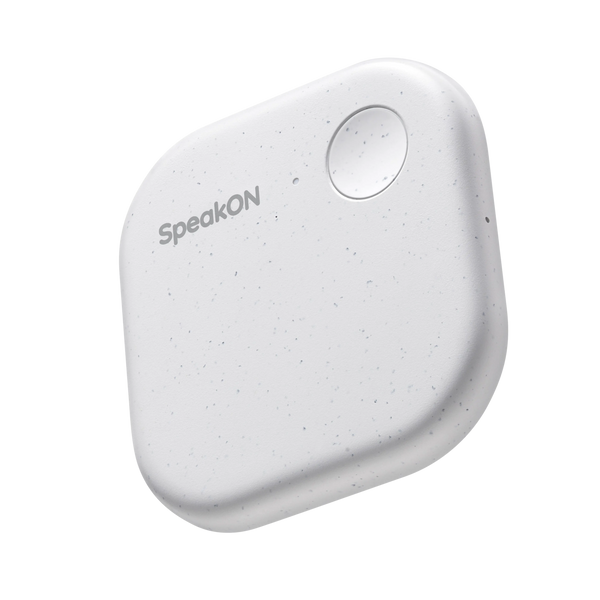
The physical button is the main reason to consider buying SpeakON. You press and hold it to capture what you are saying, then release it when you finish. SpeakON says you can start a recording while your iPhone is locked. That is the scenario to consider if your ideas often arrive while you are between tasks and you would otherwise wait until you can open an app.
There is a difference between capturing a thought and having a finished draft. SpeakON says the hardware can capture audio offline and sync later. Processing and online AI features require an internet connection. For example, you could record a reminder somewhere with weak reception and review the text when you reconnect. If your priority is seeing usable text immediately, think about the connection you normally have in the places where you expect to use it.
Explore SpeakON
Opens the SpeakON homepage. Look for the physical voice button.
2. Dictate emails and messages on iPhone
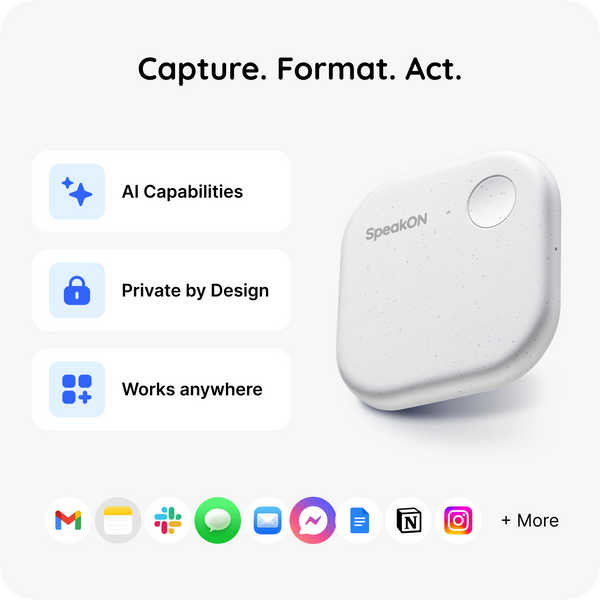
SpeakON’s voice keyboard lets you put dictated text into a compatible text field. For a message or email, select the SpeakON keyboard where you want to write, record your words, and review the resulting draft before sending. You can record with the physical button or use the microphone control in the keyboard. If you spend much of your day replying to messages on your phone, compare how each option fits your usual routine.
Auto Format can remove filler words and repetitions, handle spoken corrections, and turn a spoken list into bullets or numbered items. That is useful when you know what to say but tend to dictate in fragments. For example, you could speak three items for a follow-up email and review the list before sending. Give names, dates, and numbers a separate check. A draft can read smoothly even when a specific detail has been transcribed incorrectly.
Explore SpeakON
Opens the SpeakON homepage. Look for voice typing and Auto Format.
3. Save spoken ideas in SpeakON Notes
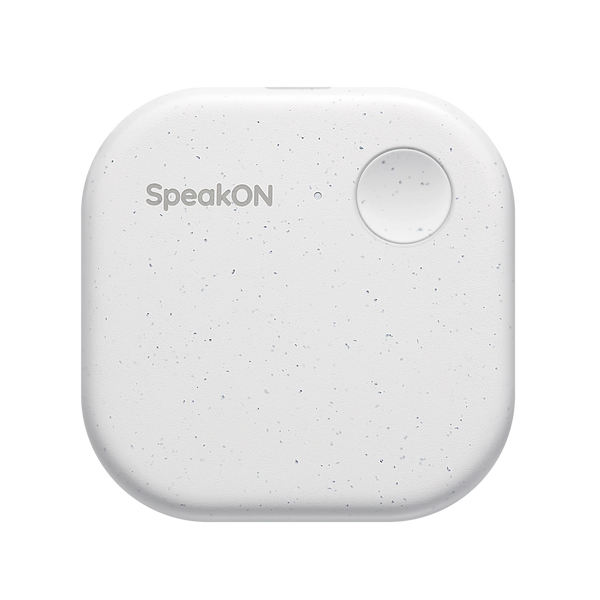
Notes gives you a place to save what you say when there is no message or document open. You can capture a reminder, outline a caption, or save the first few sentences of something you want to write later. SpeakON’s support material also describes recording directly in Notes using the app, so you can explore this part of the workflow before deciding how much the physical button would add.
Voice Edits can help when you return to the note and want to change part of the text. Imagine recording a rough caption after taking product photos, then coming back to shorten the introduction or adjust a sentence before posting. Keep the original purpose of the note in mind. A reminder needs a clear action and date. A caption may need a natural opening, accurate product details, and a readable call to action. The tool helps capture and revise the draft, while you decide which details belong in the final version.
Explore SpeakON
Opens the SpeakON homepage. Look for Notes and Voice Edits.
4. Translate spoken drafts into another language
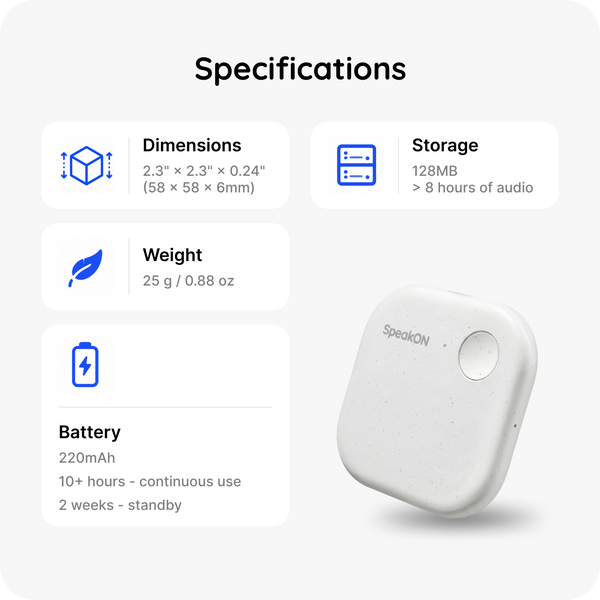
SpeakON offers a translation mode in its voice keyboard. Choose the language you will speak and the language you want for the output. The app can place the translated text in the active field. The support guide also describes using Voice Edit to translate existing text. This could be handy if you regularly write short messages across a supported language pair and want to keep the draft in the app where you are already working.
Check your exact language pair first. The published list includes English, Spanish, French, Japanese, Korean, and Simplified and Traditional Chinese, among others. Vietnamese is currently absent from the published translation list. The support guide also says that translation requires Full Access for the SpeakON keyboard. If this feature is the reason you are considering the device, try a short message in your preferred language pair and see whether the wording and tone suit the recipient.
Explore SpeakON
Opens the SpeakON homepage. Look for Translation and the supported languages.
What to check before buying SpeakON
- Check your iPhone and case. SpeakON lists iOS 16 or later. Direct magnetic attachment requires a compatible MagSafe setup. Check whether you would need the included magnetic ring for your case.
- Try the keyboard in the apps you use most. Draft a message, an email, and a note. Check how easily you can switch keyboards and review the output.
- Review what the hardware purchase includes. SpeakON lists unlimited voice typing with the device. Some advanced Agent features may have separate usage or plan requirements.
- Check delivery for your address. The official shipping policy lists the 48 contiguous U.S. states and Washington, D.C. Check the current delivery estimate at checkout.
Frequently asked questions
Can I use SpeakON without buying the button?
Yes. The iPhone app can use the phone’s built-in microphone for voice input. The hardware gives you a dedicated button and microphone for capturing speech.
Can I record when my iPhone is locked?
Yes. SpeakON says you can hold the physical button to capture speech while the phone is locked. Audio capture and text processing can happen at different times when you are offline.
Can SpeakON translate Vietnamese?
Vietnamese does not appear in SpeakON’s published list of translation languages. If Vietnamese is essential to your workflow, check the current language list before buying.
Final thoughts
SpeakON is worth considering if you already think out loud and want a quicker way to get those words into your iPhone. The physical button is most appealing when the recording step is what gets in your way. The app is a useful first step if you mainly want cleaner dictation, structured notes, or translation between supported languages. Try it on the kind of message or note you write every week. That will help you judge whether having the button within reach is worth adding to your phone.











Reviews
There are no reviews yet.