
 Electronics & Computer
 Smart Home & Security
 Home Appliances
 Kitchen & Dining
 Power & Charging
 Gaming & Entertainment
 Automotive & Outdoor
 Health & Personal Care
 Office Electronics
 Smart Lighting & Ambient




🤝 AFFILIATE DISCLOSURE: AVERY FINDS MAY EARN A COMMISSION IF YOU PURCHASE THROUGH LINKS IN THIS ARTICLE.
A property listing can have excellent photos and still leave buyers wondering how the rooms fit together. A short video tour gives you a way to show that sequence, especially when you already have listing photos and need something you can share on social media or send to a client. VideoTour.ai is designed to turn those photos into property videos. This review draws on the company’s official guides and examples to explain how the process works, what its virtual staging examples show, and what to check before choosing a plan.
What Is VideoTour.ai?
VideoTour.ai is a web-based tool for creating real estate marketing videos. Its help center describes two starting points. You can upload property photos from your device or import photos and details from a supported property listing URL. From there, the platform offers tools for arranging scenes, adjusting timing, and adding elements such as captions, voiceover, music, and branding. The choices that matter most will depend on where the finished video will appear.
A listing agent might want a tour that opens with the strongest exterior shot and takes viewers through the property in a recognizable order. A photographer might want to deliver a short video alongside a set of still photographs. VideoTour.ai also documents virtual staging for empty rooms. The four images below are two examples of that feature. Each pair shows the original listing photo and an AI-staged version, giving you a way to assess the visual changes before deciding whether they fit your marketing.
1. Living Room Before Virtual Staging
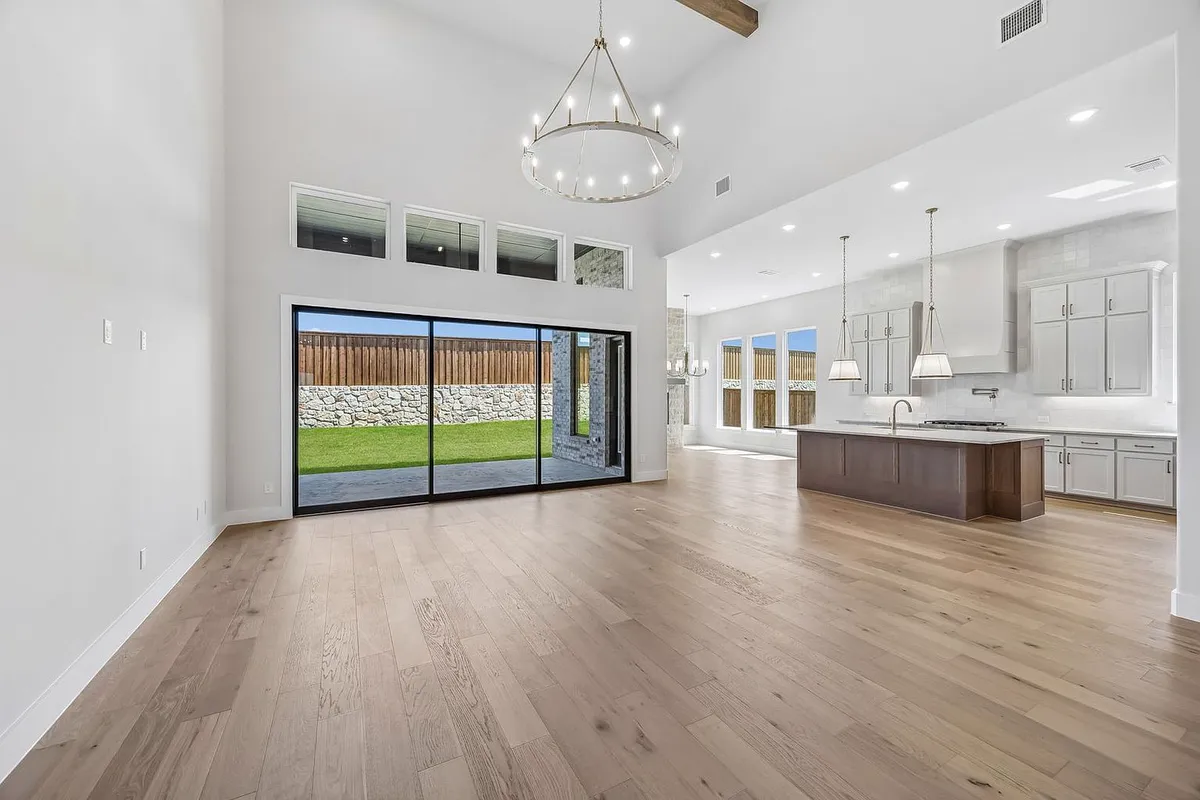
This original listing photo gives viewers a broad view of the living area and its relationship to the kitchen. The sliding door, island, windows, and floor provide reference points for understanding the layout. A wide shot like this can establish the space early in a tour. A second angle can then show where someone would stand or walk and help clarify details that are easy to miss in a single photo.
Before creating a video, choose the order in which you want viewers to encounter the rooms. For example, you might show the living area first, follow it with a closer kitchen view, then return to the sliding doors as a transition to the backyard. If you import photos from a listing URL, review the imported order and remove duplicates. If you upload your own, include the angles you want to use before starting the project.
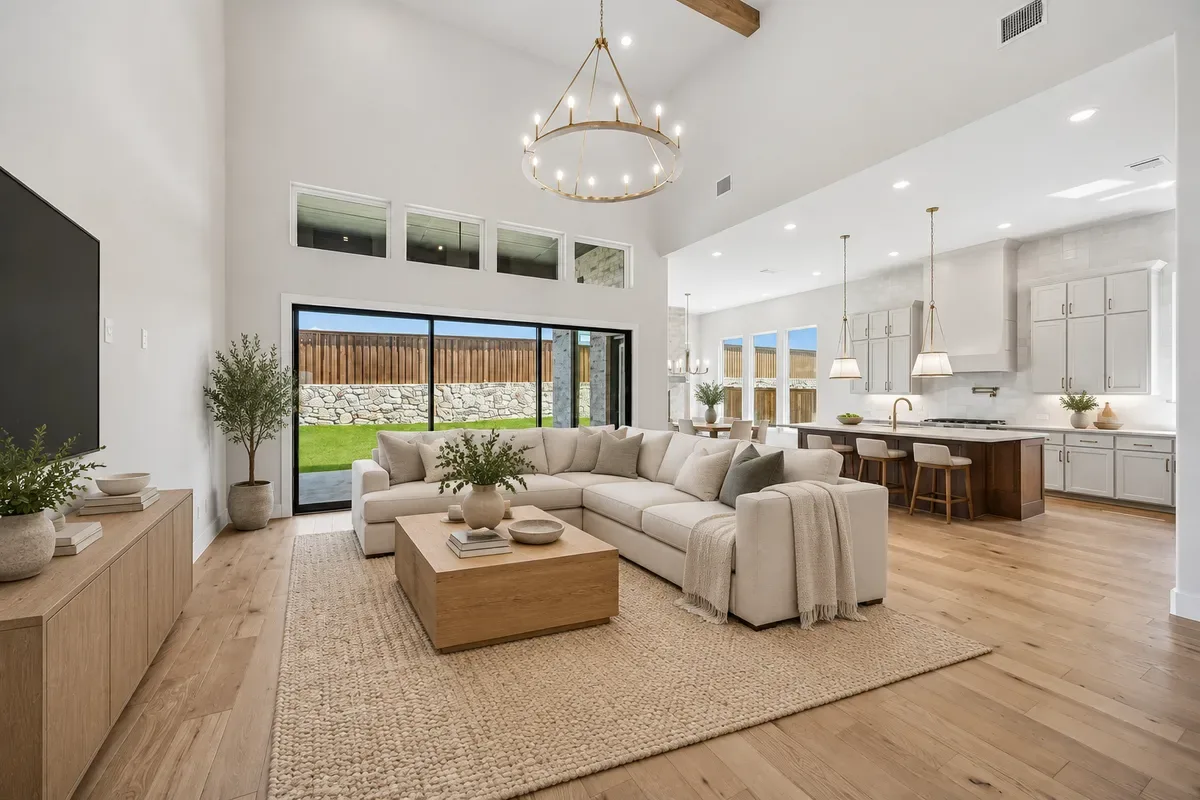
2. Living Room After AI Virtual Staging
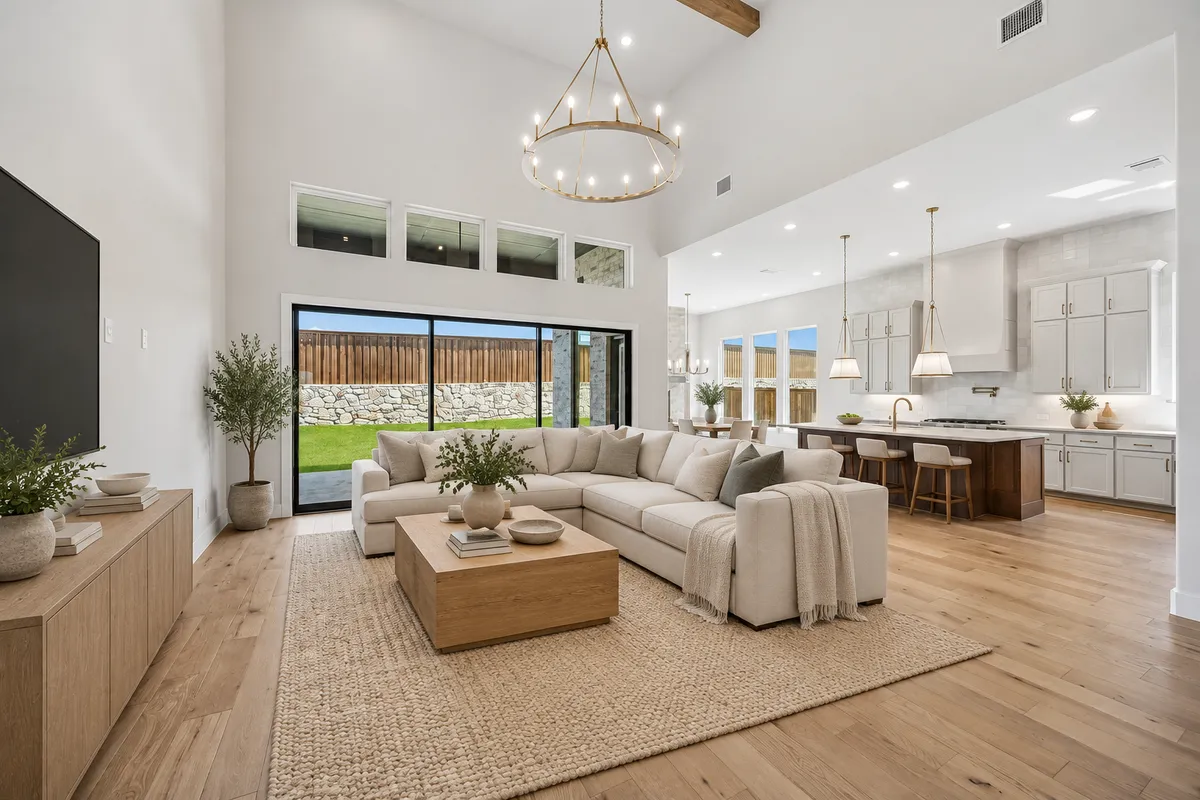
The staged example introduces a sectional sofa, a coffee table, and a rug. The arrangement gives viewers a concrete way to imagine a seating area inside the open floor plan. That is one of the clearest use cases for virtual staging. Large empty spaces can be difficult to read in a quick scroll, while a few recognizable pieces of furniture help communicate how the room might be used.
Compare the staged frame with the original before you use it. Look at the positions of doors and windows, the edges of the floor, and any permanent features a buyer would expect to see on a visit. If the tour uses several angles of the same room, check whether the furniture and its position stay consistent between cuts. Keep the original image available and identify the furnished version as virtually staged so viewers can tell which details were added for illustration.
3. Upstairs Loft Before Virtual Staging
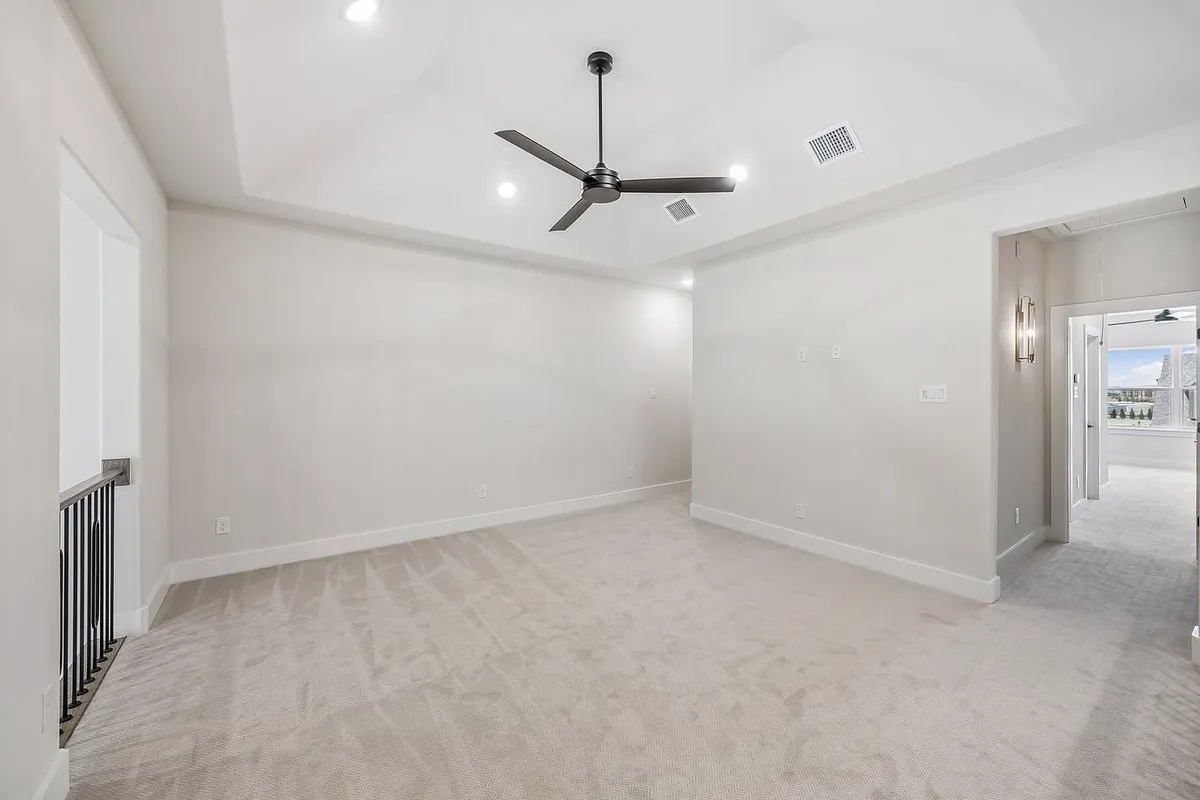
The loft is a good example of a room that could serve more than one purpose. The empty photo shows the ceiling fan, railing, and doorway, but gives the viewer little guidance on how to use the open area. In a tour, this is where a simple caption such as “Upstairs Loft” can do useful work. It identifies the space and lets the viewer decide whether it suits a lounge, workspace, or another use.
Think about how this shot follows the previous scene. A picture of the stair landing, when available, can help connect the loft to the rest of the home. If you add narration, use it to explain details the image actually supports, such as how the room connects to the hallway. Review property facts imported from the listing before including them in a caption or voiceover, especially if the listing has changed since the photos were taken.
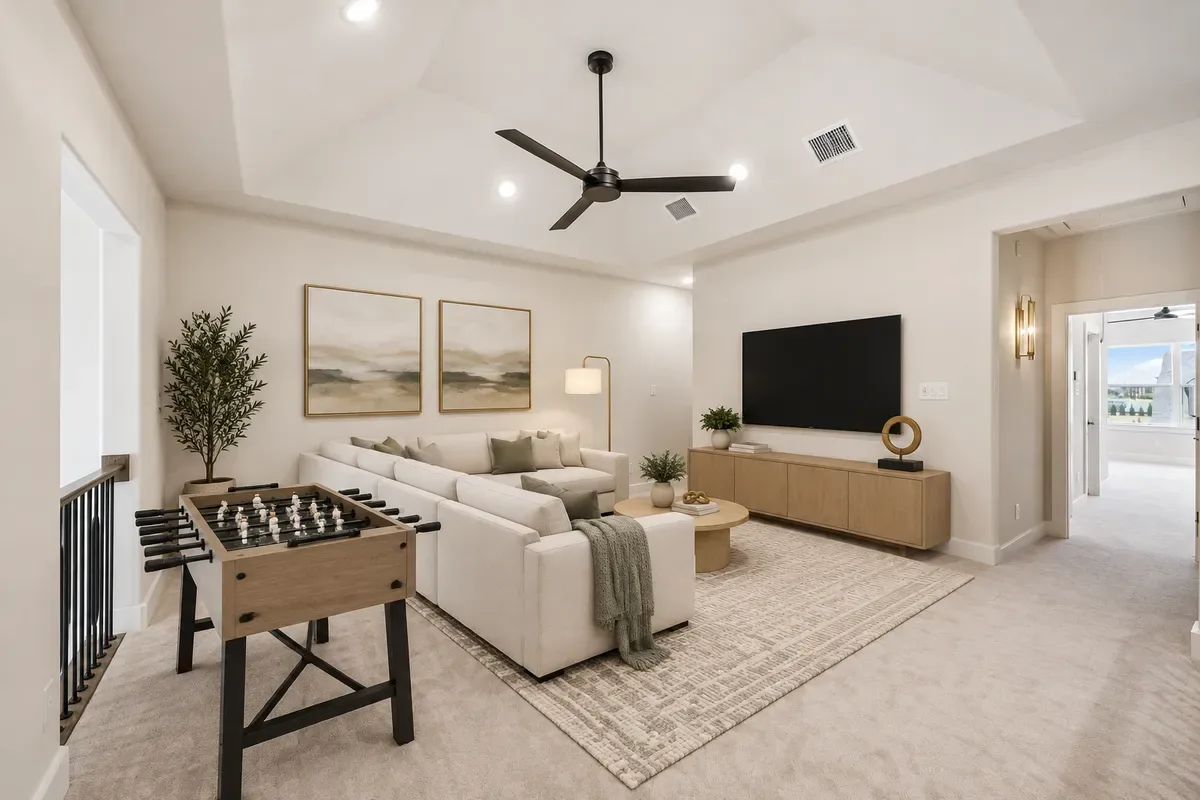
4. Upstairs Loft After AI Virtual Staging
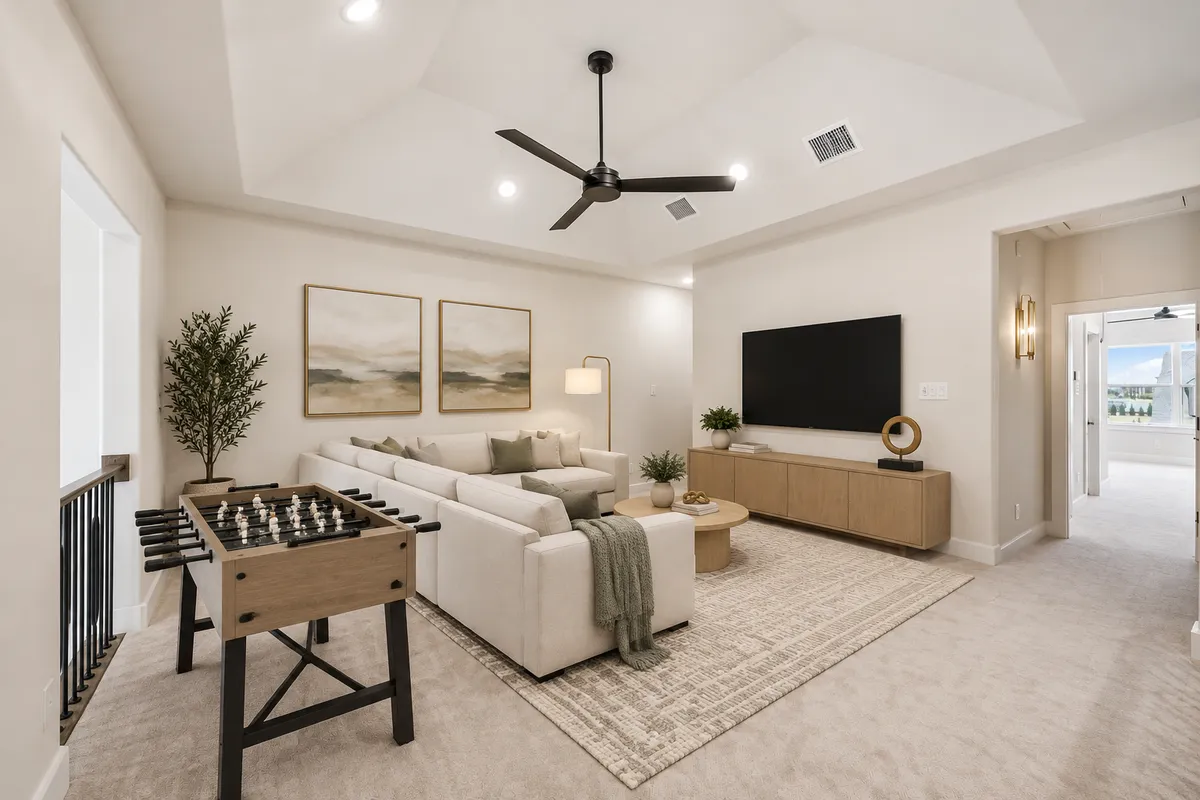
The staged loft shows one possible use of the space. A sofa, television, and foosball table turn the open area into a recreation room in the illustration. This kind of scene can give a video a memorable moment. It also makes the choice of staging style important. A recreation setup might suit one listing, while a quieter seating area could fit another. Choose the treatment based on what you want to show about the room.
Once the images are in sequence, watch the tour as a buyer would. Check whether it moves through the house in a way that is easy to follow, whether captions stay on screen long enough to read, and whether individual frames still match the source listing. Then preview the version intended for your destination. A short social clip may give the loft only a few seconds, while a longer property tour can give viewers more time to understand its position in the floor plan.
What to Check Before Choosing a Plan
- Photo and listing access. Confirm you have permission to use the photos. If you plan to import a URL, check whether the platform supports that listing and verify which details it imports.
- Video allowances and AI credits. Check how many projects your plan supports and which optional edits use credits. Include revisions in your estimate if you deliver work to clients.
- Where the video will appear. Decide whether you need a social clip, a listing video, or a presentation for clients. Check the available export and branding options for each use.
- Final review. Review the property facts, captions, branding, and virtually staged scenes before publishing. Check the submission requirements of any listing platform you plan to use.
Frequently Asked Questions
Do I need filmed footage to make a property tour?
You can start with property photos. VideoTour.ai documents both direct photo upload and import from a supported listing URL. The available photos determine the angles you can show.
Can I use the finished video for listing marketing or client work?
VideoTour.ai’s help center describes completed videos as available for listing marketing, presentations, and client work. For a specific MLS or listing platform, check its requirements for branding, links, and virtual staging.
Do I have to use AI virtual staging?
You can make a tour from the property photos and use virtual staging where it fits the project. The four images in this article illustrate two staging examples from VideoTour.ai.
Conclusion
VideoTour.ai is worth exploring if you already have listing photos and want to turn them into a video for your marketing workflow. Start with one property and decide what the viewer should learn from the tour. Then check whether the available editing, branding, and export options fit the way you plan to use it. If you add virtual staging, compare the result with the original photos before including it in the finished video.






Reviews
There are no reviews yet.